

This Google Sheets cheat sheet helps beginners create, organize, calculate, and analyze spreadsheet data more efficiently. Use it to reference formulas, functions, shortcuts, formatting tools, charts, filters, collaboration features, and practical data-management techniques.
The examples are designed for students, business users, teams, and anyone learning cloud-based spreadsheets. Start with basic navigation and formulas, then progress to data validation, conditional formatting, lookup functions, charts, and shared workflows.
How to Use This Google Sheets Cheat Sheet
Keep this reference open while building or reviewing a spreadsheet. Find the feature you need, copy the relevant formula or shortcut, and test it with a small sample of your data before applying it to an entire sheet.
Check cell references, ranges, data types, and regional settings whenever a formula returns an unexpected result. When collaborating, also review sharing permissions, protected ranges, comments, and version history before distributing sensitive information.
[BUTTON: Download Google Sheets Beginner PDF]
1. Cloud Basics: Terminology You Must Know
Before typing data, you need to understand how Google Sheets handles files differently than traditional software.
| Term | What it Means | Why it Matters |
|---|---|---|
| Google Drive | The cloud storage where all your Google Sheets are automatically saved. | You never have to click “Save”—it saves every keystroke automatically. |
| Version History | A timeline of every change made to the sheet by any user. | If you or a coworker make a mistake, you can restore an older version instantly. |
| Share Menu | The blue button in the top right corner that controls file access. | Replaces sending email attachments. You just send a link instead. |
| Collaborator | Another person viewing or editing the sheet at the same time as you. | You will see their colored cursor moving across the screen in real-time. |
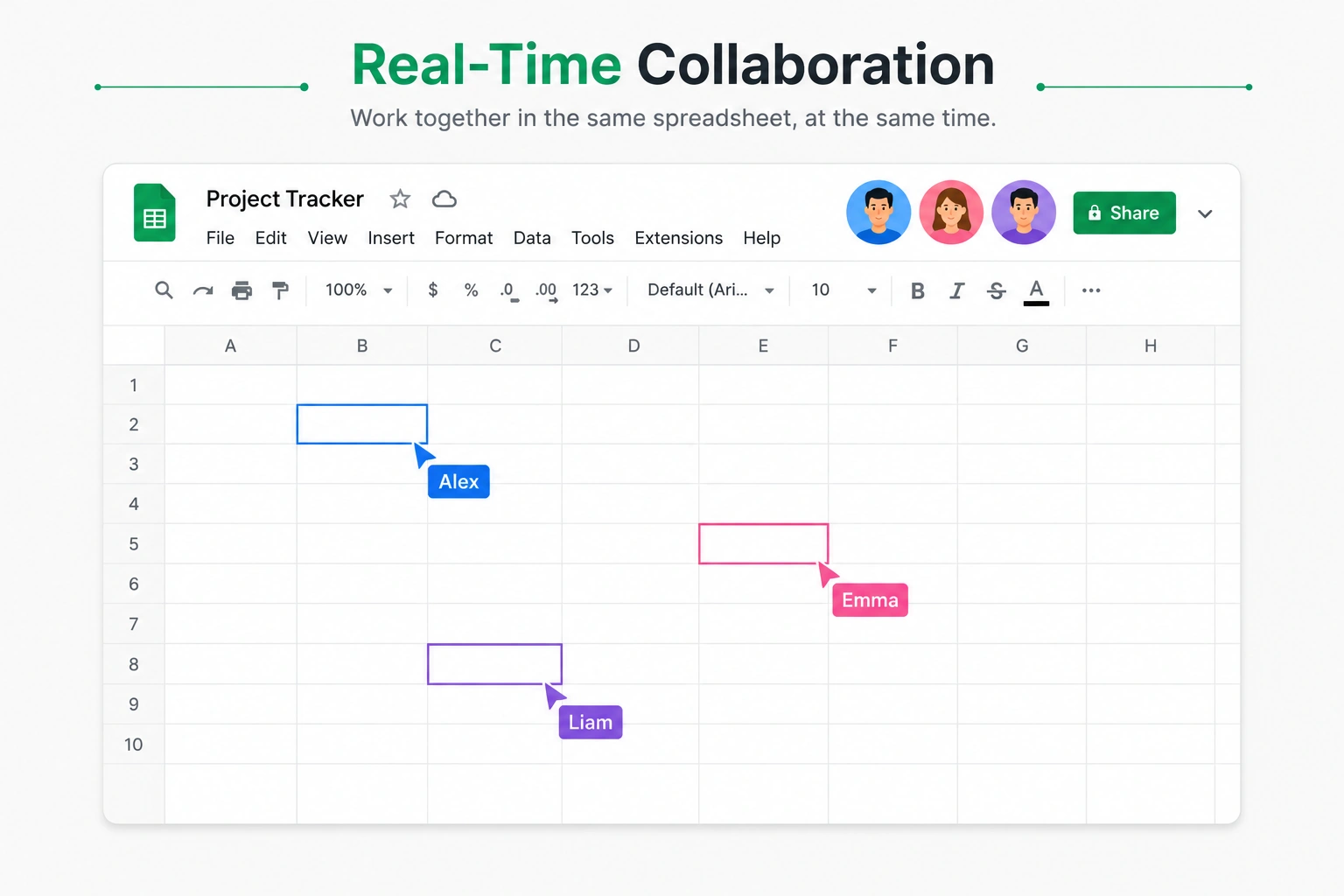
Figure: Seamless teamwork in the cloud—multiple users editing and updating data simultaneously in Google Sheets.
2. Speed Shortcuts for Google Sheets
Google Sheets runs in your web browser, which means some shortcuts differ slightly from desktop Excel to avoid conflicting with browser hotkeys.
| Action | Windows Shortcut | Mac Shortcut | Description |
|---|---|---|---|
| Insert Link | Ctrl + K |
Cmd + K |
Instantly turns text into a clickable website hyperlink. |
| Open Version History | Ctrl + Alt + Shift + H |
Cmd + Option + Shift + H |
Opens the sidebar showing all past edits and who made them. |
| Clean Data | Alt + H → I |
Ctrl + Option + H → I |
Removes accidental double spaces before or after text. |
| Show All Formulas | Ctrl + ` (grave accent) |
Cmd + ` (grave accent) |
Toggles the sheet to show raw formulas instead of numbers. |
3. Powerful Cloud Formulas Excel Doesn’t Have
While Google Sheets handles standard formulas like SUM and AVERAGE exactly like Excel, its true power lies in its internet-connected formulas.
1. GOOGLEFINANCE (Track stocks in real-time)
Fetches current or historical financial data directly from Google Finance into your sheet.
- Syntax:
=GOOGLEFINANCE(ticker, [attribute]) - Example:
=GOOGLEFINANCE("NASDAQ:GOOG", "price") - What it does: Automatically displays the current live stock price for Google.
2. SPARKLINE (Mini graphs inside a single cell)
Creates a tiny, elegant bar or line graph inside one single cell to show data trends.
- Syntax:
=SPARKLINE(data_range) - Example:
=SPARKLINE(B2:B12) - What it does: Gives a quick visual representation of sales or traffic trends without making a giant chart.
3. GOOGLETRANSLATE (Translate languages instantly)
Translates text from one language to another automatically.
- Syntax:
=GOOGLETRANSLATE(text, [source_language], [target_language]) - Example:
=GOOGLETRANSLATE(A2, "en", "sv") - What it does: Translates whatever text is in cell A2 from English to the language set in your Google Translate function (in this example, Swedish).
4. Golden Rules for Google Sheets
- Always Check Share Permissions: Before sending a link, click Share and ensure it is set to “Anyone with the link can view” (or edit), otherwise people will see an “Access Denied” screen.
- Protect Important Ranges: If you share a sheet but don’t want people breaking your formulas, right-click the column/cells, choose View more cell actions → Protect range.
- Use Checkboxes for Tasks: Go to Insert → Checkbox. Google Sheets makes it incredibly easy to create interactive to-do lists and project trackers this way.
5. Frequently Asked Questions (FAQ)
Where is the “Save” button in Google Sheets?
There is no save button. Google Sheets automatically saves every single change to the cloud within milliseconds. Look for the small cloud icon next to the file name at the top to see your sync status.
Can Excel files be opened in Google Sheets?
Yes. Drag and drop any .xlsx Excel file into your Google Drive. Double-click it, and it will open perfectly inside Google Sheets, allowing you to edit and share it normally.
Google Sheets Cheat Sheet Resources
Use these official resources alongside the Google Sheets cheat sheet to verify functions, learn spreadsheet features, and continue practicing: