

This Microsoft PowerPoint cheat sheet helps you create clearer slides, improve presentation design, and work faster with essential shortcuts and layout tools. Use it to reference slide structure, formatting, visual hierarchy, presenter features, productivity workflows, and practical AI prompts for building professional presentations.
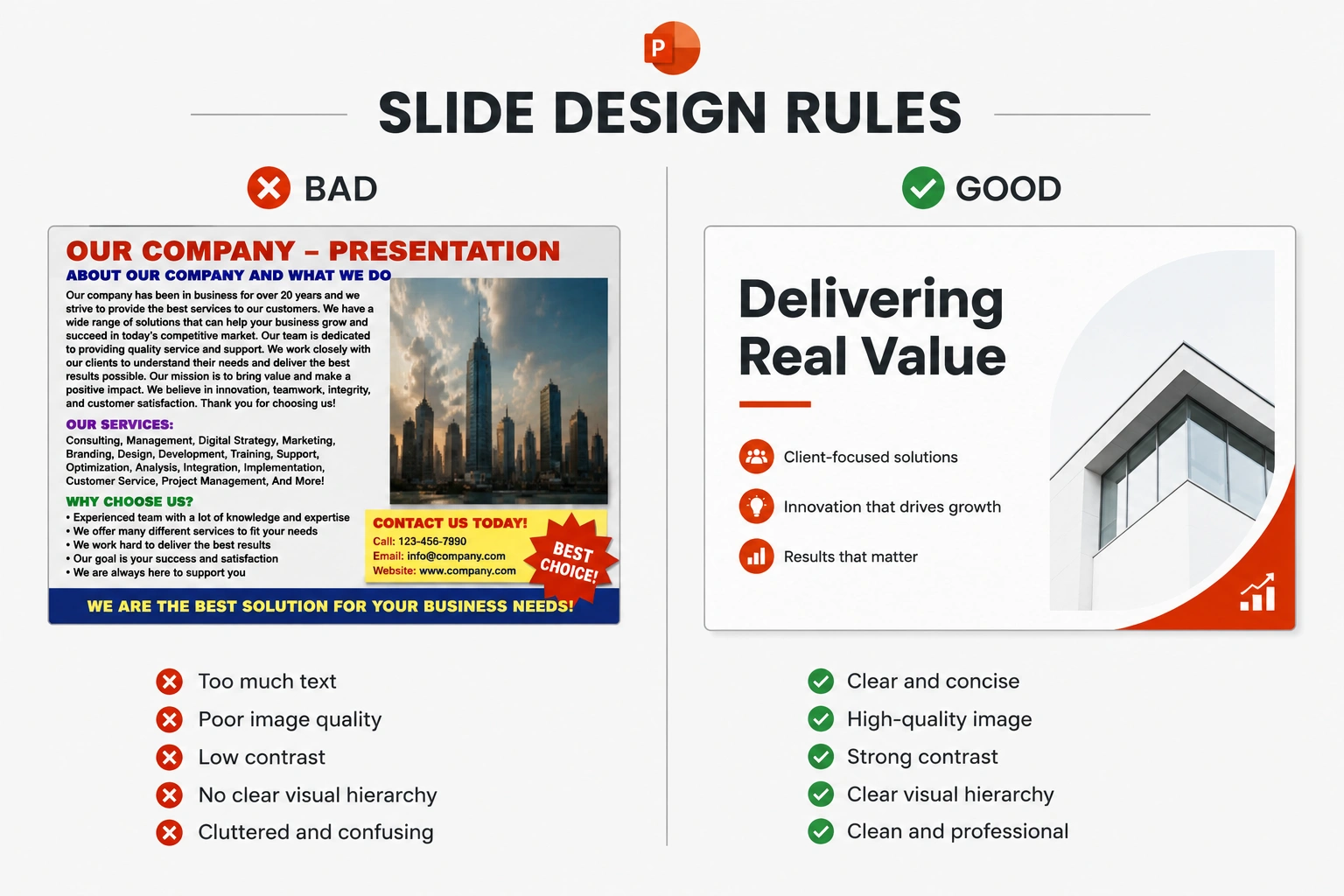
Figure: A visual guide to modern slide design, contrasting a cluttered layout with a clean, high-impact presentation structure.
[BUTTON: Download PowerPoint PDF]
How to Use This Microsoft PowerPoint Cheat Sheet
Use this reference while creating business presentations, training materials, project updates, sales decks, lessons, and conference slides. Start with the shortcuts and layout commands you use most frequently, then explore themes, alignment, images, charts, animations, and presenter tools as your workflow develops.
The Microsoft PowerPoint cheat sheet can also help you combine consistent slide design with AI-assisted planning. Use AI prompts to generate an outline, summarize source material, or suggest slide structure, but always review the final presentation for accuracy, readability, accessibility, visual consistency, and confidential information before presenting it.
1. Slide Building & Layout Shortcuts
Stop dragging individual shapes. Use these commands to structure your canvas during the editing process.
| Action | Windows Shortcut | Mac Shortcut | Result / Description |
|---|---|---|---|
| Insert New Slide | Ctrl + M |
Cmd + M |
Creates a blank slide directly beneath your current selection. |
| Duplicate Slide | Ctrl + D |
Cmd + D |
Clones the active slide and all its contents perfectly. |
| Group Objects | Ctrl + G |
Cmd + G |
Locks multiple shapes or text boxes into one single movable object. |
| Ungroup Objects | Ctrl + Shift + G |
Cmd + Shift + G |
Breaks a grouped object back into individual pieces. |
| Maintain Aspect Ratio | Hold Shift while dragging |
Hold Shift while dragging |
Prevents pictures or icons from distorting when resizing. |
2. Presentation Mode (During the Live Show)
When you are presenting, these hotkeys give you full control of the screen without showing your mouse pointer to the audience.
| Goal | Shortcut (While Live) | What the Audience Sees |
|---|---|---|
| Start from Beginning | F5 |
Launches the presentation from Slide 1. |
| Start from Current Slide | Shift + F5 |
Launches presentation from whichever slide you are editing. |
| Black Out Screen | B |
Turns the screen entirely black to pull focus back to the speaker. |
| White Out Screen | W |
Turns screen white (great for using a physical whiteboard). |
| Activate Laser Pointer | Ctrl + Left Click & Hold |
Transforms your mouse cursor into a glowing red laser dot. |
3. How to Use AI “Design Ideas” & Slide Generators
Modern PowerPoint includes generative visual libraries and smart layout tools.
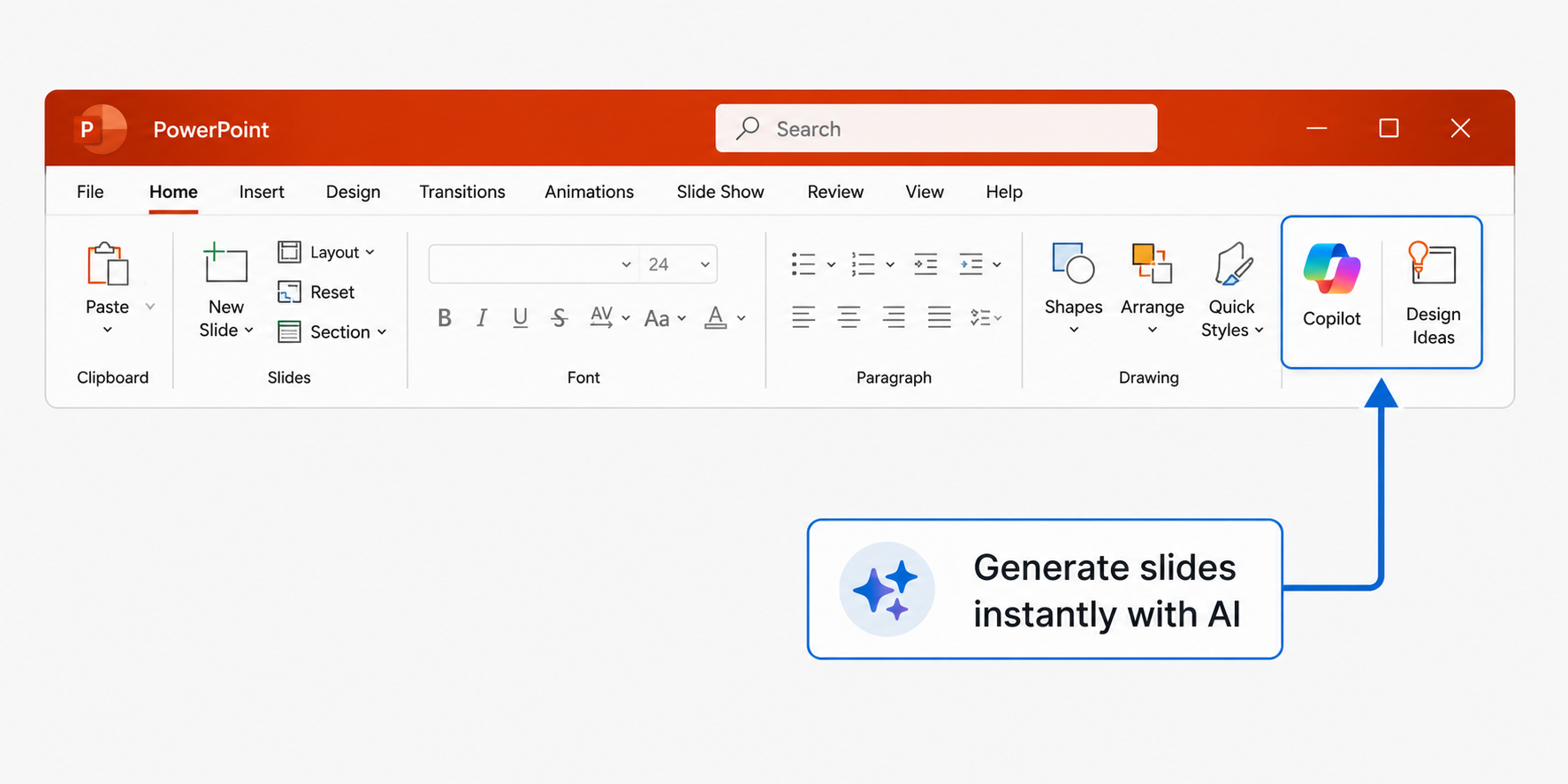
Figure: Speeding up your workflow by using integrated AI tools like Copilot and Design Ideas to generate professional slides instantly.
- The Design Ideas Hack: If your slide is just a wall of plain text, click the Home tab and select Design Ideas (Designer). PowerPoint’s AI will scan your text and instantly offer 10 professional graphic layouts, auto-inserting relevant icons.
- Multi-Library Brand Assets: When using Copilot to generate visuals, you can now prompt it to pull approved brand assets from multiple corporate SharePoint libraries simultaneously, ensuring 100% brand consistency.
4. Frequently Asked Questions (FAQ)
How do I change the size of my slides to widescreen?
If your slides look like a square with black bars on the sides, go to the Design tab on the top ribbon, click Slide Size, and choose Widescreen (16:9).
What is the “Slide Master” and why should I use it?
The Slide Master is the skeleton of your presentation. Instead of changing the font on all 40 slides manually, go to View → Slide Master. Any font, logo, or color change you make here applies to every single slide in the deck instantly.
Microsoft PowerPoint Cheat Sheet Resources
Continue learning with these official Microsoft PowerPoint guides: