
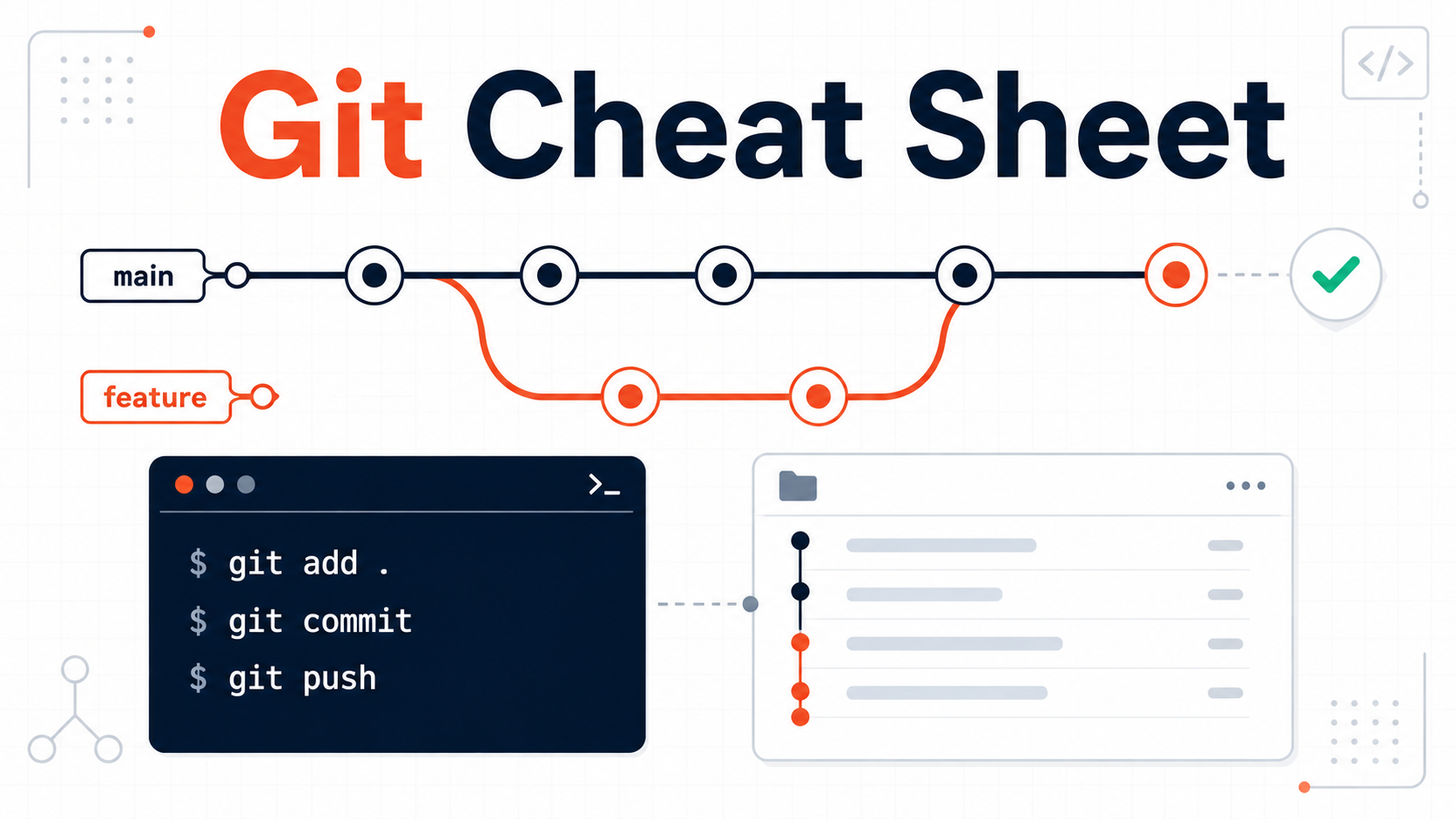
Development Cheat Sheet
Git Cheat Sheet
A practical reference for essential Git commands, branching, commits, merging, rebasing, remote repositories, undoing changes, and everyday development workflows.
- Copy-ready commands
- Practical workflows
- Safe undo guidance
- Beginner-friendly explanations
Find a command
Search the Git Cheat Sheet
Search by command, workflow, task, or Git concept.
Matching sections will remain visible while unrelated sections are hidden.
Essential commands
Git Quick Reference
Use this command list for common repository, commit, branch, remote, and history tasks. Run commands from inside the relevant project directory unless stated otherwise.
| Task | Command | What it does | Copy |
|---|---|---|---|
| Create | git init |
Creates a new Git repository in the current directory. | |
| Download | git clone <url> |
Downloads an existing remote repository. | |
| Inspect | git status |
Shows modified, staged, and untracked files. | |
| Stage | git add . |
Stages all current changes in the working directory. | |
| Commit | git commit -m "message" |
Records staged changes with a descriptive message. | |
| History | git log --oneline |
Displays a compact list of previous commits. | |
| Branch | git branch |
Lists local branches and marks the active branch. | |
| Branch | git switch -c <branch> |
Creates a new branch and switches to it. | |
| Merge | git merge <branch> |
Merges the specified branch into the current branch. | |
| Remote | git fetch origin |
Downloads remote updates without merging them. | |
| Remote | git pull |
Fetches remote changes and integrates them locally. | |
| Remote | git push -u origin <branch> |
Publishes a branch and sets its upstream tracking branch. | |
| Temporary | git stash |
Temporarily stores uncommitted tracked changes. | |
| Compare | git diff |
Shows unstaged changes in tracked files. | |
| Undo | git restore <file> |
Discards unstaged changes in a selected file. |
Core workflow
How Git Works
Git records project history as a sequence of snapshots. Changes move from your working directory to the staging area, then into the local repository, and finally to a remote repository when you push them.
| Area | Purpose | Common commands |
|---|---|---|
| Working directory | Contains the project files currently available for you to edit. |
git status,
git diff
|
| Staging area | Holds the exact changes selected for the next commit. |
git add,
git restore --staged
|
| Local repository | Stores committed snapshots and branch history on your computer. |
git commit,
git log
|
| Remote repository | Hosts shared repository history on a service or remote server. |
git fetch,
git pull,
git push
|
Basic Git workflow
Edit → stage → commit → push
git status
git add .
git commit -m "Describe the change"
git push
Initial setup
Installation and Configuration
Verify that Git is installed, then configure the name and email address recorded in your commits. Global settings apply to your user account, while local settings override them for one repository.
Verify the installation
Display the installed Git version
git --version
Configure your identity
Global name and email
git config --global user.name "Your Name"
git config --global user.email "you@example.com"
Useful configuration commands
| Task | Command | Scope or result |
|---|---|---|
| Use main for new repositories | git config --global init.defaultBranch main |
Applies to repositories created in the future. |
| View all effective settings | git config --list |
Shows the configuration currently in effect. |
| Show settings and their files | git config --list --show-origin |
Helps identify where each value was defined. |
| Read one setting | git config --get user.email |
Returns the effective email address. |
| Set an identity for one repository | git config --local user.email "work@example.com" |
Overrides the global email in the current repository. |
| Remove a setting | git config --global --unset <key> |
Deletes the selected value from the global configuration. |
Configuration scopes
| Scope | Flag | Applies to | Priority |
|---|---|---|---|
| System | --system |
Every user and repository on the computer. | Lowest |
| Global | --global |
Repositories used by the current operating-system user. | Middle |
| Local | --local |
The current repository only. | Highest |
Repository setup
Create and Clone Repositories
Start a new local repository with git init, or use
git clone to download an existing repository together
with its branches, history, and remote configuration.
Initialize an existing project directory
Create the repository and make the first commit
cd project-directory
git init
git add .
git commit -m "Initial commit"
Create a new project directory
Create, enter, and initialize a directory
mkdir project-name
cd project-name
git init
Clone an existing repository
Download a complete repository
git clone https://example.com/user/repository.git
cd repository
Clone options
| Task | Command | Result |
|---|---|---|
| Clone into a custom directory | git clone <url> <directory> |
Uses the specified local directory name. |
| Clone one branch | git clone --branch <branch> --single-branch <url> |
Checks out and follows only the selected branch. |
| Create a shallow clone | git clone --depth 1 <url> |
Downloads only the latest level of commit history. |
| Clone without checking out files | git clone --no-checkout <url> |
Downloads the repository without populating the working tree. |
| View the configured remote | git remote -v |
Shows the fetch and push URLs created by cloning. |
Record changes
Status, Staging, and Commits
Inspect your working directory, select the changes that belong in the next snapshot, and create a commit with a concise message describing why the change was made.
Standard commit workflow
Review, stage, verify, and commit
git status
git diff
git add <file>
git diff --staged
git commit -m "Describe the change"
Status and staging commands
| Command | Purpose | When to use it |
|---|---|---|
git status |
Shows the state of tracked, staged, and untracked files. | Run before and after staging or committing. |
git status --short |
Displays a compact two-column status summary. | Use when you want a faster overview. |
git add <file> |
Stages changes from one file. | Use for focused commits. |
git add <directory> |
Stages changes inside the selected directory. | Use when a feature is contained in one folder. |
git add . |
Stages current changes below the working directory. | Review the changes before using it. |
git add -p |
Interactively stages selected portions of changed files. | Use when one file contains changes for multiple commits. |
git restore --staged <file> |
Removes a file from the staging area without discarding edits. | Use when a file was staged accidentally. |
Commit commands
| Command | Purpose | Important detail |
|---|---|---|
git commit |
Opens the configured editor for a commit message. | Useful for a subject line plus a longer explanation. |
git commit -m "message" |
Creates a commit with an inline message. | Best for concise commit descriptions. |
git commit -am "message" |
Stages and commits modifications to tracked files. | Does not include new, untracked files. |
git commit --amend |
Replaces the most recent local commit. | Avoid amending a commit already shared with others. |
git commit --allow-empty -m "message" |
Creates a commit without file changes. | Sometimes used to trigger automated workflows. |
Inspect repository history
View History and Changes
Explore commit history, inspect individual snapshots, follow changes to a file, and identify when particular lines were last modified.
Compact visual history
Display branches and commits as a graph
git log --oneline --graph --decorate --all
Git log commands
| Command | What it shows | Useful for |
|---|---|---|
git log |
Full commit history for the current branch. | Reviewing authors, dates, messages, and commit hashes. |
git log --oneline |
One compact line per commit. | Finding a commit hash quickly. |
git log -n 5 |
The five most recent commits. | Limiting long history output. |
git log --author="name" |
Commits matching a particular author. | Filtering contributions by author name or email. |
git log --since="2 weeks ago" |
Commits made within the selected period. | Reviewing recent activity. |
git log -- <file> |
Commits that affected a selected file. | Following file history. |
git log -p -- <file> |
File history together with each patch. | Seeing exactly how the file changed over time. |
git log -S "text" |
Commits where the number of occurrences of text changed. | Finding when code or text was added or removed. |
Inspect commits and files
| Command | Purpose | Result |
|---|---|---|
git show <commit> |
Inspect one commit. | Shows metadata and the patch introduced by the commit. |
git show <commit>:<file> |
Read a file from a historical commit. | Prints that version without changing the working directory. |
git show --stat <commit> |
Summarize one commit. | Lists affected files and line-change totals. |
git blame <file> |
Display line-level revision information. | Shows the latest commit associated with each line. |
git reflog |
View recent movements of local references. | Helps recover commits after resets or branch changes. |
Parallel development
Branches and Switching
Branches let you develop features, fixes, and experiments without
changing the main line of development. Modern Git uses
git switch for moving between branches.
Create and switch to a feature branch
Start isolated work from the current commit
git switch -c feature/user-login
git status
Branch commands
| Command | Purpose | Important detail |
|---|---|---|
git branch |
Lists local branches. | The active branch is marked with an asterisk. |
git branch -a |
Lists local and remote-tracking branches. | Remote references normally appear under remotes/. |
git branch -v |
Lists branches with their latest commits. | Useful for reviewing branch state. |
git branch <branch> |
Creates a branch without switching to it. | The branch starts at the current commit. |
git switch <branch> |
Switches to an existing branch. | Your working files update to match that branch. |
git switch -c <branch> |
Creates a branch and switches to it. | Equivalent to the older git checkout -b workflow. |
git switch - |
Returns to the previously checked-out branch. | Useful when alternating between two branches. |
git branch -m <new-name> |
Renames the current branch. | The remote branch is not renamed automatically. |
git branch -d <branch> |
Deletes a merged local branch. | Git refuses if the branch contains unmerged work. |
git branch --merged |
Lists branches merged into the current branch. | Helpful before removing completed branches. |
Combine development history
Merge Branches
Merging integrates changes from another branch into the branch you currently have checked out. Git may fast-forward the branch, create a merge commit, or pause for conflict resolution.
Merge a completed feature into main
Update main and merge the feature branch
git switch main
git pull
git merge feature/user-login
git push
Merge commands and strategies
| Command | Effect | When to use it |
|---|---|---|
git merge <branch> |
Merges the selected branch into the current branch. | Standard branch integration. |
git merge --no-ff <branch> |
Creates a merge commit even when fast-forwarding is possible. | Preserving a visible feature-branch boundary. |
git merge --ff-only <branch> |
Merges only when no merge commit is required. | Enforcing linear history without rewriting commits. |
git merge --squash <branch> |
Stages the combined branch changes without its commit history. | Creating one new commit from many feature commits. |
git merge --abort |
Attempts to restore the state from before a conflicted merge. | Stopping a merge that cannot be resolved safely yet. |
git merge --continue |
Continues after conflicts have been resolved and staged. | Completing an interrupted merge. |
Common merge outcomes
| Outcome | What happens | History result |
|---|---|---|
| Fast-forward | The current branch has no competing commits. | The branch pointer moves forward without a merge commit. |
| Three-way merge | Both branches contain commits after their common ancestor. | Git creates a merge commit with two parents. |
| Merge conflict | Git cannot combine overlapping changes automatically. | The merge pauses until the conflicts are resolved. |
| Squash merge | Changes are combined and staged as one set. | You create one new commit without preserving branch commits. |
Rewrite branch history
Rebase
Rebasing moves a sequence of commits onto a new base commit. It can produce a cleaner linear history, but it rewrites commit hashes and should be used carefully on shared branches.
Rebase a feature branch onto the latest main branch
Update remote references and rebase local work
git switch feature/user-login
git fetch origin
git rebase origin/main
Rebase commands
| Command | Purpose | Important detail |
|---|---|---|
git rebase <base> |
Replays current-branch commits on top of the selected base. | Creates new commit hashes for the replayed commits. |
git rebase --continue |
Continues after resolved conflicts have been staged. | Run git add on resolved files first. |
git rebase --abort |
Cancels the rebase and restores the previous branch state. | Use when the rebase should not be completed. |
git rebase --skip |
Skips the commit currently causing a conflict. | The skipped commit’s changes may be omitted from the result. |
git rebase -i HEAD~3 |
Starts an interactive rebase for the latest three commits. | Allows commits to be reordered, edited, combined, or removed. |
git rebase --onto <new-base> <old-base> |
Moves a selected range of commits to another base. | Useful for advanced branch restructuring. |
Interactive rebase actions
| Action | Short form | Effect |
|---|---|---|
pick |
p |
Keeps the commit unchanged. |
reword |
r |
Keeps the changes but edits the commit message. |
edit |
e |
Pauses so the commit can be modified. |
squash |
s |
Combines the commit with the previous commit and edits messages. |
fixup |
f |
Combines the commit and discards its commit message. |
drop |
d |
Removes the commit from the rewritten history. |
Connect shared repositories
Remote Repositories
A remote is a named connection to another Git repository. The default
remote created by git clone is usually named
origin.
Connect an existing local repository to a remote
Add origin and publish the main branch
git remote add origin https://example.com/user/repository.git
git branch -M main
git push -u origin main
Remote management commands
| Command | Purpose | Important detail |
|---|---|---|
git remote |
Lists configured remote names. | Use -v to include their URLs. |
git remote -v |
Shows fetch and push URLs for every remote. | A remote may use different URLs for fetching and pushing. |
git remote show origin |
Displays detailed information about the origin remote. | Includes tracking and branch-status information. |
git remote get-url origin |
Prints the configured URL for origin. | Useful for scripts and quick verification. |
git remote add <name> <url> |
Adds a new remote connection. | The name can be origin, upstream, or another label. |
git remote set-url origin <url> |
Changes the URL associated with origin. | Useful when switching between HTTPS and SSH URLs. |
git remote rename <old> <new> |
Renames a configured remote. | Associated remote-tracking references are updated. |
git remote remove <name> |
Removes the local remote configuration. | Does not delete the repository on the remote server. |
git fetch <remote> |
Downloads updated remote references. | Does not merge them into the current branch. |
Synchronize repositories
Fetch, Pull, and Push
Fetch downloads remote information, pull downloads and integrates changes, and push publishes local commits to a remote repository.
Review remote changes before integrating them
Fetch, inspect, and merge remote main
git fetch origin
git log --oneline HEAD..origin/main
git merge origin/main
Fetch and pull commands
| Command | What it does | When to use it |
|---|---|---|
git fetch |
Downloads updates from the current branch’s remote. | Reviewing remote work without changing local files. |
git fetch origin |
Updates remote-tracking references from origin. | Synchronizing remote branch information. |
git fetch --all |
Fetches from every configured remote. | Repositories connected to multiple remotes. |
git fetch --prune |
Fetches updates and removes stale remote-tracking references. | Cleaning references to deleted remote branches. |
git pull |
Fetches and integrates the tracked remote branch. | Updating a local branch in one command. |
git pull --rebase |
Fetches and rebases local commits onto the updated remote branch. | Maintaining linear local history when team policy allows it. |
git pull --ff-only |
Updates only when a fast-forward is possible. | Avoiding automatic merge commits during pull. |
Push commands
| Command | What it does | Important detail |
|---|---|---|
git push |
Publishes commits to the configured upstream branch. | Works after branch tracking has been configured. |
git push -u origin <branch> |
Publishes a branch and configures its upstream. | Usually needed for the first push of a new branch. |
git push origin <branch> |
Pushes the selected local branch to origin. | Does not necessarily configure upstream tracking. |
git push origin --delete <branch> |
Deletes a branch from the remote repository. | The local branch remains unless removed separately. |
git push --tags |
Publishes local tags not yet available remotely. | Use when release tags should be shared. |
git push --force-with-lease |
Replaces remote history only when it has not changed unexpectedly. | Safer than a plain force push, but still rewrites shared history. |
Recover and correct work
Undo Changes
Choose an undo command based on where the change exists: the working directory, staging area, local commit history, or a shared remote branch.
Inspect the current state before undoing anything
Review files, staged changes, and recent commits
git status
git diff
git diff --staged
git log --oneline -5
Choose the correct undo command
| Situation | Command | Result |
|---|---|---|
| Discard unstaged changes in one file | git restore <file> |
Replaces the working copy with the indexed version. |
| Discard all unstaged tracked changes | git restore . |
Restores tracked files below the current directory. |
| Remove one file from staging | git restore --staged <file> |
Keeps the file edits but removes them from the next commit. |
| Restore a file from an earlier commit | git restore --source=<commit> -- <file> |
Copies that historical version into the working directory. |
| Change the latest local commit | git commit --amend |
Replaces the latest commit with a revised one. |
| Undo a commit already shared with others | git revert <commit> |
Creates a new commit that reverses the selected commit. |
| Remove the latest local commit but keep changes staged | git reset --soft HEAD~1 |
Moves the branch back while preserving staged changes. |
| Find recently lost local commits | git reflog |
Displays recent local reference movements for recovery. |
| Preview removal of untracked files | git clean -n |
Shows what would be deleted without deleting anything. |
| Remove untracked files and directories | git clean -fd |
Permanently deletes matching untracked content. |
Recover a commit using reflog
Locate the commit and create a recovery branch
git reflog
git switch -c recovery-branch <commit>
Undo command comparison
Reset vs Revert vs Restore
Restore changes files, reset moves a branch reference and optionally updates files, while revert creates a new commit that reverses an earlier commit.
| Command | Primary target | Rewrites history? | Best use |
|---|---|---|---|
git restore |
Working-directory or staged file content | No | Discarding file changes or unstaging selected files. |
git reset |
Current branch, staging area, and optionally working files | Yes, when moving a branch away from commits | Correcting private local history or changing staged state. |
git revert |
A previous commit’s changes | No | Safely reversing commits in shared history. |
Git reset modes
| Mode | Moves HEAD? | Updates staging? | Updates working files? |
|---|---|---|---|
git reset --soft <commit> |
Yes | No | No |
git reset --mixed <commit> |
Yes | Yes | No |
git reset --hard <commit> |
Yes | Yes | Yes |
Safe undo for a shared commit
Inspect and revert a selected commit
git log --oneline
git show <commit>
git revert <commit>
git push
Temporarily store work
Git Stash
Stashing temporarily stores uncommitted changes so you can switch tasks or branches with a cleaner working directory, then restore the work later.
Save work and restore it later
Create a named stash and reapply it
git stash push -m "Work in progress"
git stash list
git stash apply stash@{0}
Stash commands
| Command | Purpose | Important detail |
|---|---|---|
git stash |
Stores tracked staged and unstaged changes. | Untracked files are excluded by default. |
git stash push -m "message" |
Creates a stash with a descriptive label. | Helpful when keeping several stashes. |
git stash -u |
Stashes tracked and untracked files. | Ignored files remain excluded. |
git stash list |
Lists saved stashes. | Each entry receives a reference such as stash@{0}. |
git stash show stash@{0} |
Displays a summary of one stash. | Add -p to display its complete patch. |
git stash apply stash@{0} |
Restores a stash without deleting it. | Useful when the same stash may be needed again. |
git stash pop |
Applies the latest stash and removes it if successful. | Conflicts may require manual resolution. |
git stash drop stash@{0} |
Deletes one selected stash. | Review it before removal. |
git stash branch <branch> stash@{0} |
Creates a branch from the stash’s original base and applies it. | Useful when applying the stash to the current branch conflicts. |
git stash clear |
Deletes every stash in the repository. | There is no confirmation prompt. |
Compare repository states
Git Diff
Use git diff to compare working files, staged content,
commits, and branches before committing, merging, or reviewing code.
Review changes before committing
Compare unstaged and staged changes
git diff
git diff --staged
git diff --stat HEAD
Diff commands
| Command | Comparison | Useful for |
|---|---|---|
git diff |
Working directory vs staging area | Reviewing unstaged tracked changes. |
git diff --staged |
Staging area vs latest commit | Reviewing exactly what the next commit will contain. |
git diff HEAD |
Working directory and staging area vs latest commit | Reviewing all current tracked changes. |
git diff <commit-1> <commit-2> |
Two selected commits | Comparing historical repository states. |
git diff <branch-1> <branch-2> |
Current tips of two branches | Seeing the complete difference between branch snapshots. |
git diff main...feature |
Shared merge base vs feature branch | Reviewing changes introduced by a feature branch. |
git diff -- <file> |
Unstaged changes in one file | Focusing on a selected path. |
git diff --stat |
Summary of changed files and line counts | Getting a compact overview. |
git diff --name-only |
Names of changed files only | Scripts and quick file-level reviews. |
git diff --word-diff |
Changed words instead of complete lines | Reviewing prose, documentation, and small text edits. |
Exclude generated and local files
Gitignore
A .gitignore file defines untracked files and directories
that Git should normally ignore. It is commonly used for dependencies,
build output, logs, editor settings, and local environment files.
Example .gitignore file
Common project exclusions
# Dependencies
node_modules/

# Environment files
.env
.env.local

# Build output
dist/
build/

# Logs
*.log

# Operating-system files
.DS_Store
Thumbs.db

# Editor settings
.vscode/
.idea/
Gitignore patterns
| Pattern | Meaning | Example use |
|---|---|---|
file.txt |
Ignores files with that name. | Ignore a specific generated file. |
directory/ |
Ignores the directory and its contents. | Ignore dependencies or build output. |
*.log |
Ignores files ending with the selected extension. | Ignore all log files. |
logs/*.log |
Matches log files directly inside the logs directory. | Limit a pattern to one location. |
**/temp/ |
Matches temp directories at any depth. | Ignore repeated generated directories. |
!important.log |
Re-includes a path excluded by an earlier pattern. | Keep one selected file from an ignored group. |
/config.local |
Matches only at the repository root. | Avoid matching the same name in nested directories. |
# comment |
Adds an explanatory comment. | Document why a pattern exists. |
Stop tracking a file that is now ignored
Remove the file from Git while keeping the local copy
git rm --cached <file>
git commit -m "Stop tracking local file"
Useful ignore commands
| Command | Purpose |
|---|---|
git status --ignored |
Shows ignored paths together with normal status information. |
git check-ignore -v <file> |
Shows which ignore rule matches a selected file. |
git rm -r --cached <directory> |
Stops tracking a directory while preserving its local files. |
git config --global core.excludesFile <file> |
Configures a personal global ignore file. |
Combine overlapping changes
Resolve Merge Conflicts
A conflict occurs when Git cannot determine how overlapping changes should be combined. Review each conflicted file, choose the correct content, remove the conflict markers, and stage the resolution.
Conflict markers
Example of an unresolved file
<<<<<<< HEAD
const message = "Current branch version";
=======
const message = "Incoming branch version";
>>>>>>> feature-branch
| Marker | Meaning |
|---|---|
<<<<<<< HEAD |
Begins the content from the current branch. |
======= |
Separates the two conflicting versions. |
>>>>>>> branch |
Ends the incoming branch’s content. |
Resolve a merge conflict
Inspect, stage, and complete the merge
git status
# Edit each conflicted file and remove the conflict markers
git add <resolved-file>
git commit
Conflict-resolution commands
| Command | Purpose | Context |
|---|---|---|
git status |
Lists files with unresolved conflicts. | Merge and rebase |
git diff --name-only --diff-filter=U |
Lists only unmerged files. | Merge and rebase |
git add <file> |
Marks the edited file as resolved. | Merge and rebase |
git commit |
Completes a normal conflicted merge. | Merge |
git merge --continue |
Continues the merge after resolutions are staged. | Merge |
git rebase --continue |
Continues replaying commits after conflict resolution. | Rebase |
git merge --abort |
Attempts to return to the state before the merge. | Merge |
git rebase --abort |
Returns to the branch state from before the rebase. | Rebase |
Practical command sequences
Everyday Git Workflows
Use these adaptable command sequences for common feature development, fork synchronization, and urgent-fix workflows.
Feature branch workflow
Create, commit, and publish a feature branch
git switch main
git pull --ff-only
git switch -c feature/search-filter
git add .
git commit -m "Add search filter"
git push -u origin feature/search-filter
Synchronize a fork with upstream
Update local main from the original repository
git fetch upstream
git switch main
git merge --ff-only upstream/main
git push origin main
Urgent hotfix workflow
Create and publish a focused fix
git switch main
git pull --ff-only
git switch -c hotfix/payment-timeout
git add .
git commit -m "Fix payment timeout handling"
git push -u origin hotfix/payment-timeout
Workflow selection
| Workflow | Best for | Main principle |
|---|---|---|
| Feature branch | New functionality and planned improvements. | Keep unfinished work isolated from the main branch. |
| Pull request | Team review, automated tests, and controlled merging. | Review changes before they enter a protected branch. |
| Fork workflow | Open-source contributions and limited repository access. | Push to your fork and propose changes to upstream. |
| Hotfix branch | Urgent production corrections. | Keep the fix narrow, test it, and merge it through review. |
| Release branch | Final stabilization of a planned release. | Restrict changes to release preparation and approved fixes. |
Reliable repository habits
Git Best Practices
Keep repository history understandable, protect shared work, and make changes easier to review, test, and recover.
| Practice | Why it matters | Recommended approach |
|---|---|---|
| Create focused commits | Small logical changes are easier to review and revert. | Separate unrelated fixes, formatting, and features. |
| Write descriptive messages | Commit history should explain the purpose of each change. | Use an action-oriented subject such as “Fix checkout validation.” |
| Review before committing | Prevents debug code, secrets, and unrelated files entering history. | Use git diff and git diff --staged. |
| Use short-lived branches | Smaller branches reduce integration conflicts and review size. | Merge focused work regularly instead of maintaining long divergences. |
| Synchronize before publishing | Reduces unexpected conflicts with current remote work. | Fetch and review upstream changes before pushing or opening a review. |
| Protect the main branch | Prevents unreviewed or failing changes entering production history. | Require pull requests, tests, and appropriate approvals. |
| Avoid rewriting shared history | Changed commit hashes disrupt other contributors’ branches. | Use revert for shared commits and rebase primarily on private work. |
| Keep secrets out of Git | Deleted files remain available in previous commits. | Use environment variables, secret managers, and appropriate ignore rules. |
| Tag releases consistently | Stable version references simplify releases and rollback decisions. | Use annotated tags and a consistent versioning convention. |
| Document team conventions | Contributors need a shared workflow and naming rules. | Maintain clear contribution and repository documentation. |
Pre-push review
Inspect branch state before publishing
git status
git diff --check
git log --oneline origin/main..HEAD
Common questions
Git FAQ
Quick answers to common questions about repositories, commands, branches, remote synchronization, and history management.
What is Git?
Git is a distributed version-control system that records changes to files. Each clone normally contains the repository history, allowing developers to commit, branch, compare, and inspect work locally.
What is the difference between Git and GitHub?
Git is the version-control software. GitHub is a hosting and collaboration platform built around Git repositories. Git can be used locally or with other hosting services and private servers.
What is the difference between git init and git clone?
git init creates a new repository in a directory.
git clone downloads an existing repository together
with its history and normally configures a remote named
origin.
What is the difference between add, commit, and push?
git add selects changes for the next snapshot.
git commit records those staged changes locally.
git push publishes local commits to a remote repository.
What is the difference between git fetch and git pull?
git fetch downloads remote references without changing
the current branch. git pull fetches and then integrates
the tracked remote branch by merging or rebasing according to the
selected configuration and options.
How do I undo the latest Git commit?
For an unshared local commit, git reset --soft HEAD~1
removes the commit while keeping its changes staged. For a shared
commit, git revert <commit> is usually safer
because it creates a new reversing commit.
Should I use merge or rebase?
Merge combines histories without rewriting existing commits. Rebase creates a linear sequence by replaying commits onto another base. Merge is safer for shared history; rebase is commonly used to update private feature branches.
What does detached HEAD mean?
Detached HEAD means you checked out a specific commit rather than a
branch. You can inspect and test that state, but create a branch with
git switch -c <branch> before keeping new commits.
Why is Git still tracking a file in .gitignore?
Ignore rules normally affect untracked files. If the file was
committed previously, use
git rm --cached <file>, commit that change, and
keep the appropriate pattern in .gitignore.
Should I use git checkout or git switch?
Modern Git separates common responsibilities:
git switch changes branches and
git restore restores file content.
git checkout remains available and is common in older
documentation and workflows.